
CozyWorld game guide · By CozyWorld
This guide covers our own game, written from the current game rules and browser checks.
How to Play Color by Number: Rules and Tips
Color by number turns a picture into numbered squares and asks you to color each one with the paint that has its number. Here are the rules, how pixel color by number works, why dragging beats tapping by our own count, how to zoom and find the last squares, the common mistakes and the tips that make a picture come together.
Color by number is coloring with the decisions taken care of. A picture is divided into small areas, every area carries a number, and every number belongs to one color. You color each area with the color whose number it shows, and when the last one is done, the picture is there. In the pixel version you play on a screen, the areas are the squares of a grid, and you color them by tapping or dragging.
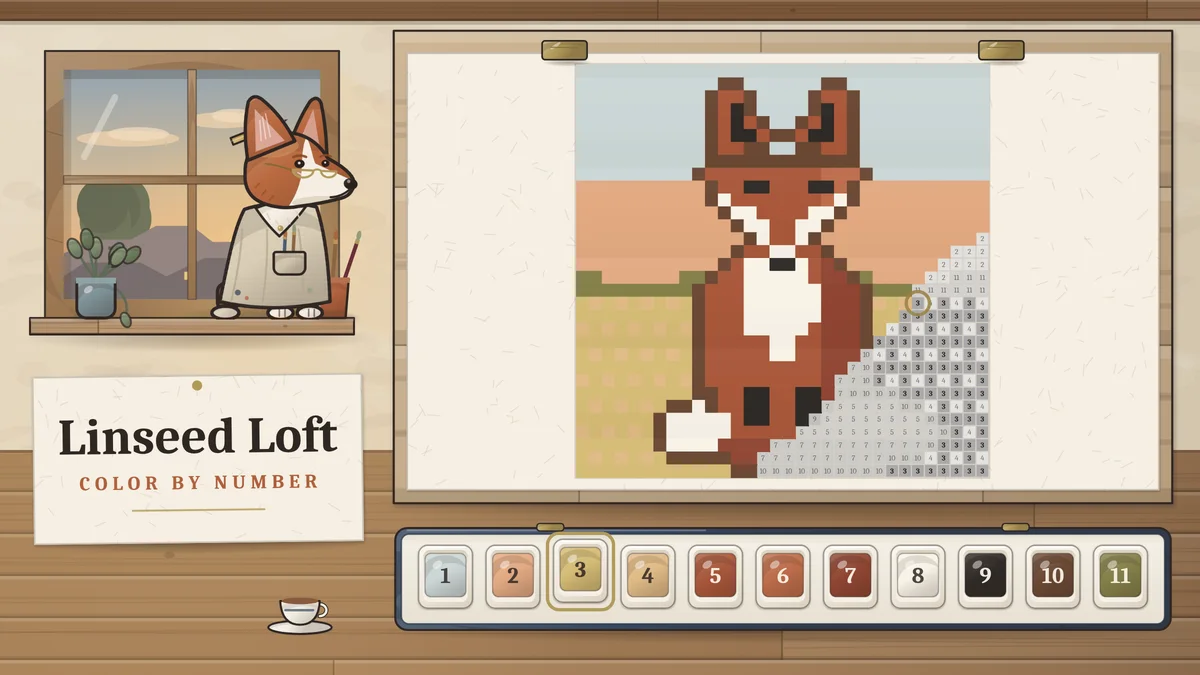
This guide covers the rules, how pixel color by number differs from a paint by number kit, the controls of Linseed Loft Color by Number (CozyWorld’s free color by number game, at a drafting table in an attic studio, where a corgi named Clement keeps you company), how to fill by number quickly, how to zoom and find the last squares, why people find it relaxing, and the common mistakes. The counts come from our own count of the game’s 74 pictures and our own simulation, which colors every picture through the game’s real rules.
Color by number rules and the goal
The rules fit in a sentence: color every area with the color whose number it shows. There is nothing to work out about which color goes where, because the numbers tell you. What is left is the pleasure of doing it, and of watching a picture appear out of a field of numbers.
In pixel color by number, every area is one square of a grid. Each picture comes with its own set of paints, numbered from 1, and each paint colors the squares with its number. Pick a paint, color its squares, pick another, and the picture is finished when no numbered square is left.
In Linseed Loft Color by Number, a square only takes the paint whose number it shows. A tap on a square that wants a different paint changes nothing, and the card on the wall says which paint it is after, so there is nothing to undo and no penalty. There is no score, no lives and no clock to beat.
| Part of the game | What happens |
|---|---|
| The start | Every square shows its number on a soft gray tone |
| Picking a paint | The squares still to color with it are shaded |
| A square with that paint’s number | It takes the color |
| A square with another number | It stays as it was, and the card names the paint it wants |
| A paint used up | Its well in the tin gets a check mark |
| Every square colored | The picture is finished and goes into the gallery |
Paint by number, color by number and pixel art
Paint by number began as a boxed kit: brushes, numbered tubs of paint and a canvas printed with outlines and numbers. You painted inside each outline with the matching tub, and the outlines kept the picture together even if your brush wandered a little.
Pixel color by number keeps the idea and changes the canvas. The outlines become the edges of square cells, so every area is the same shape and the paint can never go over a line. A square is either colored or not, which is why a screen version can tell you when a paint is used up and when the picture is done.
The squares also change how a picture is drawn. The Linseed Loft pictures were drawn for the game square by square, from a box of 52 muted paints with names such as Clay, Duck egg and Lamplight. Each picture uses 8 to 14 of them, 12 in the middle picture, so the colors in one picture stay easy to tell apart.
Controls in Linseed Loft Color by Number
Press Play and the first picture is clipped to the drafting board, with paint 1 already picked up from the enamel tin in front of it. Each well in the tin shows its paint, its number and a thin bar of how much of that paint is done. Tap a well to pick up its paint.
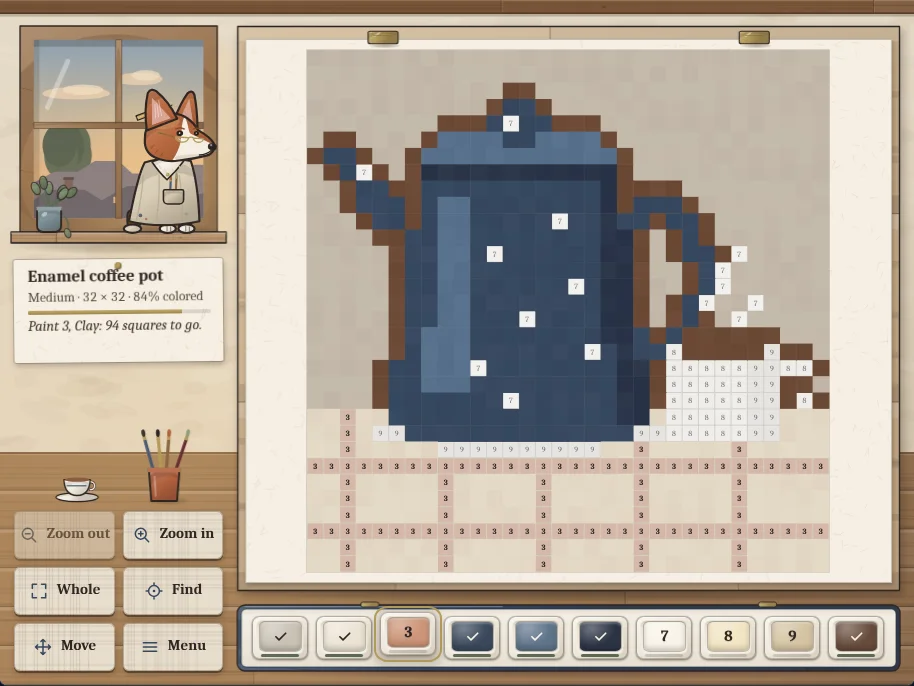
To color, tap a square with the paint’s number, or drag across the picture. A drag colors every square with the paint in hand that it passes over and leaves every other square alone, so you can sweep across a row without worrying about the squares in between. On a touch screen, a finger waits a moment before coloring, in case a second finger follows to pinch.
Pinch with two fingers, scroll the mouse wheel, or use Zoom in and Zoom out to get closer. Drag with two fingers or with the right mouse button to move the picture, or turn on Move to move it with one finger. Whole shows the whole picture again, and Find jumps to the nearest square still to color with the paint in hand.
On a keyboard, the arrow keys move a highlighted square, Space or Enter colors it, and Shift with an arrow colors as it moves. The keys 1 to 9 and 0 pick paints 1 to 10, [ and ] step through all of them, + and − zoom, W shows the whole picture and F finds a square. Menu opens the gallery, today’s picture, your statistics, Settings and the rules, and every square you color is saved in your browser as you go.
Beginner strategy
Work one paint at a time. Pick a paint, color every square it has, then move to the next. Hopping between paints means hunting for the same squares twice. When a paint is used up, Linseed Loft picks up the next paint with squares left for you, unless you turn that off in Settings.
Start with the paint that covers the most. By our count of the 74 pictures, the most used paint covers between 16 and 75 percent of a picture, and about 31 percent in the middle one. That is usually the background or the largest shape, and coloring it first gives the picture its outline early. The bar under the picture’s name moves fastest that way too.
Zoom in until you can read the numbers. Linseed Loft shows the numbers once the squares are big enough to read, and when a picture is zoomed out too far to tap a square, a tap zooms in there first. Large pictures read best close up, a corner at a time.
Leave the shading on. The squares still to color with the paint in hand are tinted with it, which shows where the paint goes before you read a single number. You can turn it off in Settings if you prefer the plain grid.
Fill by number: drag, don’t tap
To see how much dragging saves, we ran our own simulation. Three computer players colored every one of the 74 pictures to the end through the game’s own rules. The first taps every square, one at a time. The second drags once along each row for each paint that row holds. The third scribbles once over each patch, a patch being squares of one paint that touch side by side, in a single stroke without lifting. Nothing was sampled, so the counts are exact for our pictures.
Over all 74 pictures, the tapper needed 92,672 taps, one for every square. The row dragger needed 9,797 drags, about one for every nine squares, and the patch scribbler 10,119 strokes. The bigger the picture, the more a drag saves: a Small picture took a median of 87 drags for its 576 squares, and a Large one 176 drags for 2,304.
In practice you will mix the two: long drags across the rows of a big area, a scribble around a curved patch, and single taps for the odd square on its own. A drag only ever colors squares of the paint in hand, so you can drag boldly across the whole width of the picture.
| Size | Pictures | Squares (taps) | Row drags | Patches | Lone squares |
|---|---|---|---|---|---|
| Small | 25 | 576 | 87 | 63 | 31 |
| Medium | 28 | 1,024 | 133 | 106 | 45 |
| Large | 21 | 2,304 | 176 | 195 | 102 |
Zoom, move and find the last squares
The end of a picture is where most of the time goes. The big areas are done, and what is left is scattered: a highlight on a teapot, an eye, one lit window. In our count, 46 of the 74 pictures have at least one paint with ten squares or fewer, and the pictures hold 6,064 lone squares in all, squares with no neighbor of the same paint beside them.
This is what Find is for. Pick the paint, press Find (or F on a keyboard), and the picture zooms in on the nearest square still to color with it, with a brass ring around it. Color it, then press Find again for the next one. It is much quicker than zooming out and scanning the whole picture for a faint number.
Move rather than zoom out. Once the numbers are a comfortable size, drag the picture with two fingers or the right mouse button, or turn on Move, and keep the zoom where it is. Whole is there whenever you want to step back and see how far the picture has come.
Picture sizes
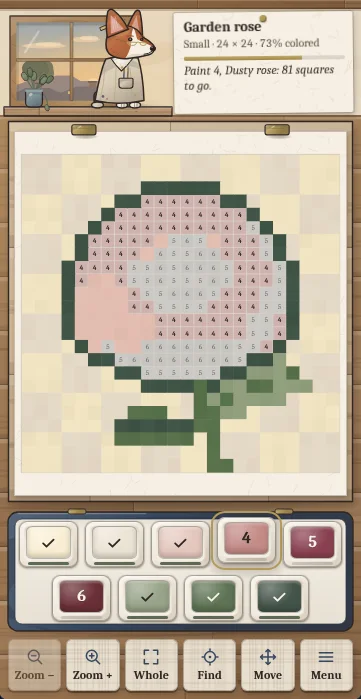
Linseed Loft has 74 pictures in three sizes and seven collections: the kitchen table, flowers, the garden, the village, animals, landscapes and the seasons. Small pictures suit a single sitting. Large ones are a project: every picture keeps its own progress in your browser, so you can leave one half done, color another, and come back to it from the gallery.
Today’s picture is one Small or Medium picture a day, the same for everyone on the same date, taken in a fixed order from the 53 Small and Medium pictures. Finish it to add a day to your streak, and copy a result line with the date, your time and your streak, which gives nothing of the picture away.
| Size | Pictures | Squares a side | Squares |
|---|---|---|---|
| Small | 25 | 24 by 24 | 576 |
| Medium | 28 | 24 to 40 | 768 to 1,280 |
| Large | 21 | 40 to 64 | 1,920 to 4,096 |
Why color by number is relaxing
Most games ask you to decide something. Color by number hardly does: the numbers settle where every color goes, so your attention can rest on the small, repeated act of coloring and on the picture taking shape. It keeps your hands busy in the way knitting or a jigsaw does, with a picture at the end instead of a scarf or a box lid.
It also gives steady, visible progress. Every stroke changes the picture, a paint used up gets a check mark, and the picture is always a little nearer done than it was a minute ago. There is no way to spoil it: a wrong square stays as it was, and you can stop after any square and pick up there later.
That is a description of how the game feels, not a health claim. CozyWorld makes no medical claims for any game. If a picture starts to feel like a chore, a Small one or a break is the right answer.
Common mistakes
Tapping every square. A tap colors one square and a drag colors a whole run, and since a drag passes over every other number, it costs nothing to drag. In our simulation a row drag colored about nine squares on average.
Jumping between paints. Coloring a little of each paint means coming back over the same ground again and again. Finish one paint, let its check mark appear, then pick the next.
Zooming out to hunt for the last squares. At full view the numbers are too small to read and a stray square is easy to miss. Use Find instead.
Leaving Move on. With Move turned on, a one-finger drag moves the picture instead of coloring, though a single tap still colors. If your drags stop painting, check the Move button.
Worrying about wrong taps. A square that wants another paint simply ignores the one in hand. There is nothing to undo, so tap and drag freely.
Tips for coloring faster and calmer
Scribble over a patch. A patch of one paint can be colored in one wandering stroke without lifting your finger, and nothing else gets painted on the way. Our pictures have a median of 63 patches in a Small picture and 195 in a Large one.
Save the small paints for Find. When a paint has only a handful of squares, pick it and press Find to go straight to them rather than looking.
Use Shift and the arrow keys for long rows on a keyboard. Each step colors the square it lands on if it takes the paint in hand, so holding Shift and an arrow sweeps a row.
Turn off the automatic next paint if you like to choose. In Settings, you can keep the paint you finished in hand and pick the next one yourself.
Keep a picture going. A Large picture of 1,920 to 4,096 squares is pleasant to color a corner at a time, and the gallery shows how far each picture has come.
A short history of paint by number
The first patent for the paint by number technique was filed in 1923, but the idea took off in the 1950s. Paint by number in its popular form came from the Palmer Show Card Paint Company of Detroit, whose owner, Max S. Klein, brought the idea to an employee, the commercial artist Dan Robbins. In 1951 the company began selling the kits under a brand of its own, which went on to sell more than 12 million of them, and in 1955 alone Americans bought more than $20 million worth of paint by number kits.
The kits have since found a place in museums. The Palmer Paint archives were donated to the Smithsonian’s National Museum of American History, and in 2011 the Museum of Modern Art in New York accepted four early paint by number designs by Max S. Klein. Pixel color by number on phones and computers is the same idea on a grid of squares.
Keep playing
Color by number asks for one habit more than any other: pick a paint and color all of it before you move on. Drag along the rows rather than tapping square by square, start with the paint that covers the most, zoom in until the numbers are easy to read, and let Find take you to the last few squares. For more quiet puzzles, try Little Stitches, our cross-stitch nonogram, where the counts decide which squares to fill; Rainy Day Jigsaw, with no clock and no wrong moves; Magpie Green Spot the Difference, for a slow look at a pair of pictures; or Cottage Word Search, with a hidden saying in every puzzle.
- Play Linseed Loft Color by Number: rules, controls and FAQ
- Little Stitches: nonograms in a cross-stitch hoop
- Rainy Day Jigsaw: illustrated jigsaws at your own pace
- Magpie Green Spot the Difference: a slow look at two pictures
- Cottage Word Search: themed word searches with a hidden saying
- How to play nonograms: the Little Stitches guide
- Rainy Day Jigsaw guide: edges, sizes and hints
- How to play spot the difference: rules and tips
- Relaxing games: calming games to unwind with
- Free online games for adults, no download
More guides and roundups
Match mahjong tiles, solve sudoku and killer sudoku, slide 2048 tiles, make 24 from four number cards, sweep a minesweeper board, stitch a nonogram, find hidden words, unscramble a word, fit a jigsaw, rake leaf piles, sort shells, merge fruit or crack firefly codes. Choose a puzzle by the decisions it asks you to make.
How to Play Hangman: Rules, Letters and StrategyHangman is the classic word game of guessing a word one letter at a time before a picture is finished. Here are the rules, how six and eight misses differ, the best first letters by our own count of our word list, how to read the pattern, how phrases change the game, and the common mistakes and tips that solve more words.
Games Like Wordle: 15 Wordle Alternatives to TryFinished today's Wordle in three and want more? Here are the best Wordle alternatives, from the New York Times' own daily games to Quordle, Waffle, Absurdle and Nerdle, plus seven free browser puzzles from CozyWorld.
Free Online Games for Seniors and Older AdultsFree online games for seniors and older adults: solitaire, mahjong, word search, sudoku, jigsaw and nonograms that open in a browser, with no countdown, no accounts and no purchases. Here is how the eight compare on round length, timers and help.